Are Browser-Native APIs the Safest Way to Record Your Screen and Webcam?
Record your screen or webcam without cloud uploads using browser-native APIs. Your recordings stay private, on-device, and never touch a server.
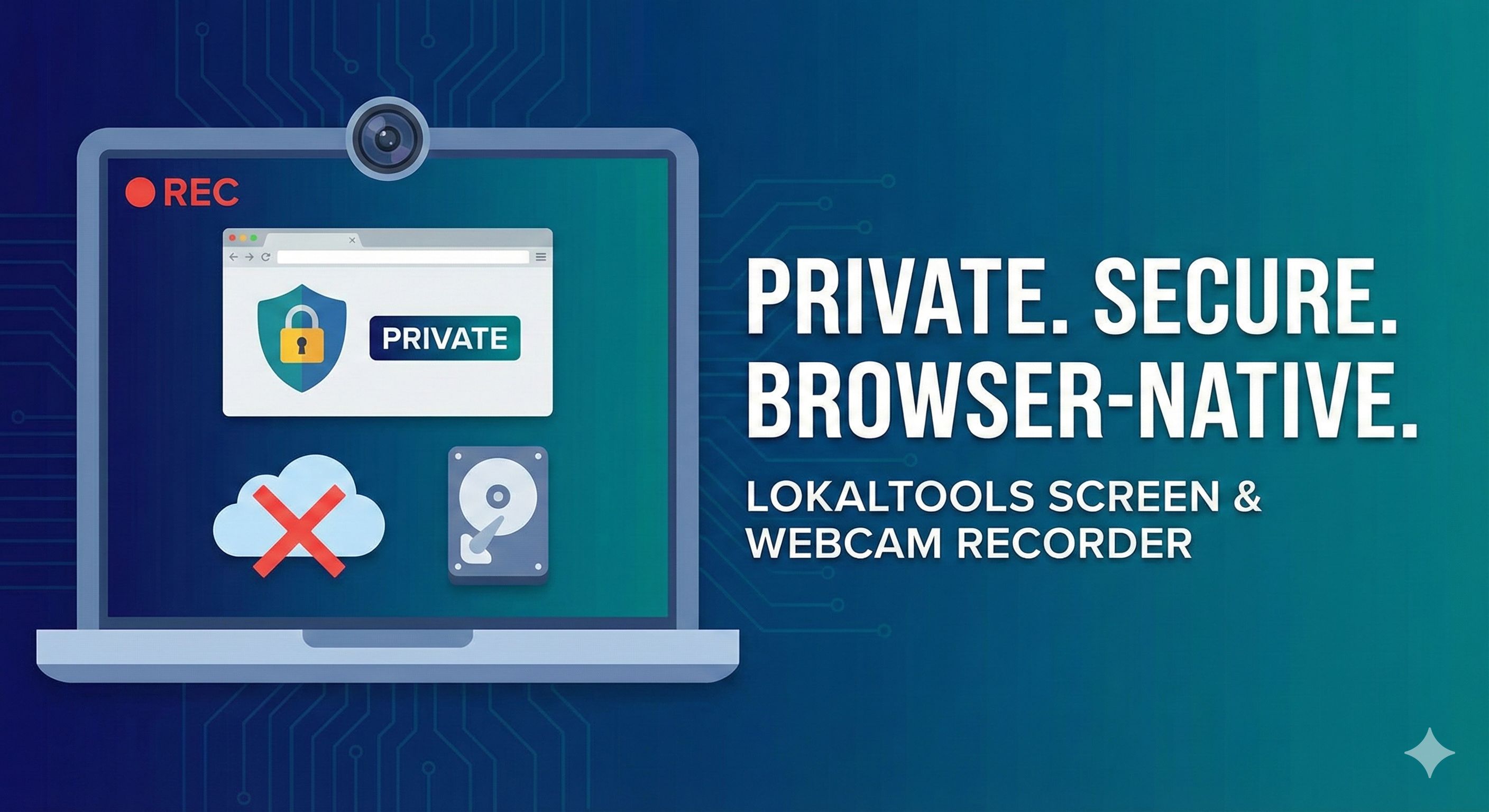
Are Browser-Native APIs the Safest Way to Record Your Screen and Webcam?
Yes—browser-native APIs like the MediaRecorder API and File System Access API let you record your screen and webcam entirely offline, with no data ever sent to a remote server. The LokalTools Screen Recorder and Webcam Recorder use these APIs to capture, encode, and save video directly to your hard drive. Zero bytes are transmitted.
Let's talk about a daily ritual for most remote workers and developers: the screen recording. Whether you are capturing a weird UI bug, walking a client through a new dashboard, or recording a quick webcam presentation, video is the easiest way to communicate context. But there is a massive security blind spot in how most people record their screens.
For years, the default move has been to install a third-party browser extension or desktop app. You hit record, capture your internal company data, and hit stop. Then you sit watching a progress bar as the app uploads your video to a remote cloud server to generate a shareable link.
We looked at this workflow and realized it is fundamentally broken. Why send gigabytes of sensitive video across the internet just to record something happening right in front of you?
What Is the Privacy Risk of Cloud-Based Screen Recorders?
When you use a cloud-based screen recorder, you are actively streaming your screen contents to a server you do not control. Think about what is visible on your screen during a typical workday: proprietary source code in your IDE, customer names and emails in your CRM, private messages popping up in the corner, financial projections in a spreadsheet.
When you push a recording to a third-party server, you are trusting their infrastructure. You are hoping their storage buckets are properly configured. You are blindly trusting their data deletion policy. If that platform suffers a data breach, your internal company walk-throughs and bug reports are suddenly out in the wild.
Beyond the privacy risks, there is the raw inefficiency of it all. Video files are massive. If you are on a slow hotel Wi-Fi connection, uploading a 10-minute 4K screen recording can take longer than the recording itself. You are burning bandwidth for no good reason.

What Is the MediaRecorder API and How Does It Work?
The MediaRecorder API is a browser-native interface that captures, encodes, and saves media streams—audio and video—entirely on the client side, without any server involvement. Modern browsers like Chrome, Firefox, and Safari have deep, low-level access to your machine's hardware, provided you grant explicit permission.
We built the LokalTools Screen & Webcam Recorder entirely around this API. Here is the exact sequence of how a purely local web recorder captures your screen:
- The Handshake: We use the
navigator.mediaDevices.getDisplayMedia()API. This triggers a native browser prompt asking which window, tab, or screen you want to share. This is a secure, browser-level permission dialogue that no website can bypass. - The Stream: Once you grant permission, the browser hands our JavaScript application a
MediaStreamobject—a raw, live feed of your screen's pixels and your microphone's audio. - The Local Encode: We pass this stream into the
MediaRecorderAPI. The browser's built-in media engine (often utilizing hardware acceleration from your GPU) encodes the raw frames into a compressed format like WebM or MP4 on the fly. - The Assembly: The API outputs encoded video data in chunks. We assemble these chunks locally and offer you a direct download.
Zero bytes are transmitted over the network. You could literally turn off your Wi-Fi the moment you load the LokalTools page, and the recorder would function flawlessly.
What Went Wrong When We First Built the Screen Recorder?
Building a native screen recorder sounds straightforward—grab the stream, record it, save the file. But when we first built the prototype for LokalTools, we ran headfirst into a catastrophic memory problem.
The standard way developers use the MediaRecorder API is by listening to an ondataavailable event. Every few seconds, the API hands you a "Blob"—a chunk of binary data containing the latest encoded video. The standard approach is to push these Blobs into a JavaScript array, and when the user hits stop, stitch the array together into a final video file.
This works perfectly for a quick 60-second bug report.
But what happens when a user tries to record a two-hour webinar?
As the recording continues, that JavaScript array keeps growing. 100MB. 500MB. 2GB. Browsers place strict memory limits on individual tabs to prevent rogue websites from crashing your entire computer. When our prototype hit that memory ceiling, Chrome didn't just warn the user—it instantly killed the tab with an "Out of Memory" error. The user lost their entire recording. It was a terrible experience.
The Fix: We completely abandoned the array-hoarding method. Instead, we implemented a streaming architecture using the File System Access API.
Now, when you start a recording on LokalTools, we immediately prompt you to choose where to save the file on your hard drive. As the MediaRecorder generates video chunks, we pipe those Blobs directly through a FileSystemWritableFileStream to your local disk.
The data bypasses the browser's RAM entirely. In our testing, you can record massive, multi-hour 4K sessions and the browser tab will never consume more than a few megabytes of memory. If your battery dies mid-recording, the video file up to that exact second is already safely sitting on your hard drive.
Does a Local Recorder Ever Lose to a Cloud Recorder?
We are massive advocates for client-side processing, but we do not build tools in a vacuum. You need to know when local architecture is the right choice, and when cloud architecture actually holds the advantage.
The single biggest trade-off of a local browser recorder is instant shareability.
With LokalTools, because we prioritize absolute privacy, we never see your file. That means when you hit stop, you get a physical video file on your desktop. You own it completely. But if you want a colleague to watch it, you are responsible for uploading it somewhere—Google Drive, Dropbox, YouTube, etc.
For workflows where speed-of-sharing is the absolute highest priority and the screen contents are not sensitive, a cloud recorder is hard to beat. But for everything else—capturing sensitive internal data, recording on a slow network, or simply wanting to own your recordings—local is the clear choice.
Try It Yourself
Stop waiting for uploads. Stop wondering where your screen recordings are being stored.
Head over to the Screen Recorder or Webcam Recorder right now. Turn off your Wi-Fi if you want to test it. Select your screen, record a quick clip, and watch as your browser encodes and saves a high-quality video directly to your machine—instantly, securely, and completely offline.
Frequently Asked Questions
Is it safe to record sensitive meetings or proprietary code with a browser recorder? Yes, when using a tool that processes entirely locally. With LokalTools, your screen content is captured and encoded by your own browser using native APIs—nothing is transmitted to any server. Your recording is only as exposed as your own device.
What is the MediaRecorder API? The MediaRecorder API is a built-in browser interface that records audio and video streams directly on the client side. It encodes media using your device's hardware (often GPU-accelerated) into formats like WebM or MP4, with no server required.
Do I need to install anything to use the browser screen recorder? No. The LokalTools recorder uses standard browser APIs that are built into Chrome, Firefox, Edge, and Safari. No extensions, no plugins, no desktop apps required.
How long can I record before running out of memory? Unlimited, in practice. We use the File System Access API to stream recorded video chunks directly to your hard drive as they are generated. The browser tab uses only a few megabytes of RAM regardless of recording length.
What is the File System Access API? The File System Access API is a browser interface that allows web apps to read and write files directly to your local disk—with your explicit permission. We use it to stream video chunks to your hard drive in real time, bypassing browser RAM limits entirely.
What format does the recorder save in? The recorder outputs WebM (the default for most browsers) or MP4, depending on your browser's codec support. Both formats are widely compatible with video players, editors, and upload platforms.
Can I record both my screen and webcam at the same time? Yes. You can use the Screen Recorder to capture your display and the Webcam Recorder to capture your camera. For a combined picture-in-picture recording, capture both streams and combine them locally using a video editing tool after the fact.