Screen Recorder
Record your screen, window, or tab instantly in your browser. No watermarks.
About Screen Recorder
Capture and share your screen activity with zero hassle. Our screen recorder allows you to record your entire desktop, a specific application window, or a single browser tab directly from your web navigation – with no software to install and no watermarks.
How to Use
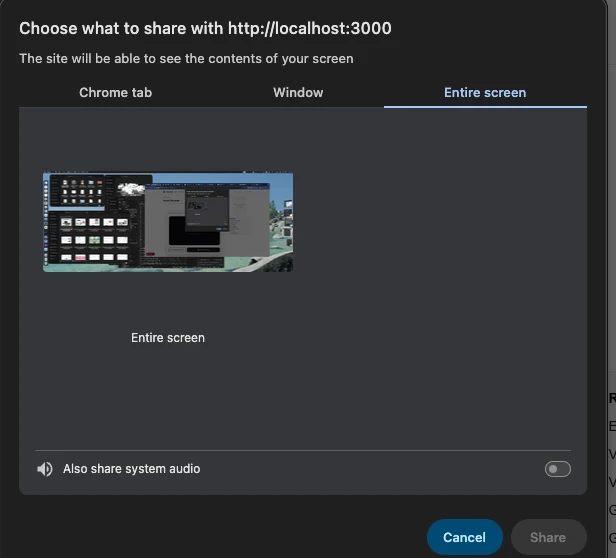
- Click 'Start Recording' and choose the source (screen, window, or tab) you want to share.
- Optional: Check 'Include Microphone' if you want to record your voice over the capture.
- Perform the actions you want to record on your screen.
- Click 'Stop Recording' to finish and download your high-quality video file instantly.
Common Use Cases
- Creating quick software tutorials or bug reports for your team.
- Recording online presentations, webinars, or video calls for later review.
- Sharing gameplay clips or creative workflow demos without needing complex recording software.
Technical Details
Utilizes the screen-sharing and MediaRecorder APIs built into modern browsers. All encoding happens on your local CPU, ensuring your screen content is never transmitted to us.
Frequently Asked Questions
- Is there a recording limit?
- We don't impose hard limits, but long recordings generate very large files that may strain your browser's memory.
- Can it record audio?
- Yes, you can include your microphone. Some systems also support recording system audio alongside the screen capture.
- Can I record my full desktop or just a browser tab?
- When you click Start Recording, your browser will ask what to share: the entire screen, a specific app window, or a single browser tab. You choose which one to capture.
- What format is the screen recording saved in?
- Recordings are saved as WebM, which is broadly supported on Windows, Mac, and Linux. You can convert WebM to MP4 using the Video Converter tool if you need wider compatibility.
- Can I record my screen with audio on a Mac?
- On macOS, browsers can capture microphone audio alongside screen recording. Capturing system (desktop) audio requires a virtual audio driver like BlackHole, as macOS does not natively expose system audio to browser APIs.
- Is the screen recording stored on any server?
- No. The Screen Recorder uses the browser's MediaRecorder API combined with getDisplayMedia to capture your screen entirely within the browser's sandbox. The resulting video is saved directly to your device as a WebM file when you click stop or download — no data passes through any server. This means recordings can be arbitrarily large without any upload limit. If you need MP4 format, use the GIF to MP4 or Video Converter tool to convert the WebM file after downloading.
Local processing
Our local file, text and chart tools process content on your device using JavaScript, browser APIs and, where needed, WebAssembly. Our usage events do not include filenames, file contents, input text, chart values, raw errors, emails or license references. Network lookup tools (such as DNS, WHOIS, IP and speed tests) contact external services for their stated purpose. Loading the website, fonts, libraries and models also makes network requests. WebAssembly itself does not prevent network access.
Learn more
Read the full guide →