
Audio Extractor (MP3)
Extract the audio track from any video file securely in your browser.
About Audio Extractor (MP3)
Instantly grab the sound from any video file and save it as an MP3. Whether it's a music video, a recorded lecture, or a funny clip, our extractor allows you to isolate the audio for easy listening on any device.
How to Use
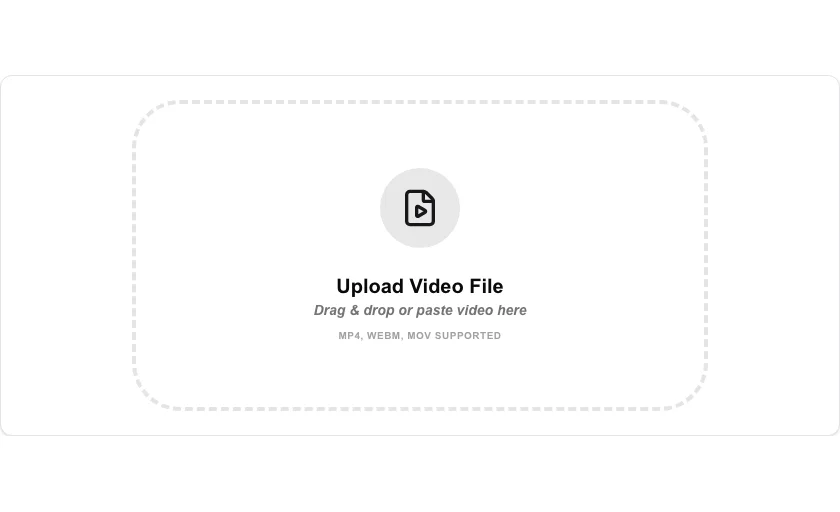
- Upload the video file containing the audio you want to extract.
- Click 'Extract Audio' to begin the local processing.
- Our engine will decode the video and encode the audio track into an MP3.
- Once 'Audio Ready' appears, click the download icon to save your MP3 file.
Common Use Cases
- Downloading the audio from personal recordings to listen to on the go.
- Saving a soundtrack or music from a video file you own.
- Extracting a speech or lecture audio for podcast-style offline listening.
Technical Details
Leverages the browser's audio decoding APIs or FFmpeg.wasm to transcode the primary audio stream into the universal MP3 format. processed locally and on-device.
Frequently Asked Questions
- What formats are supported?
- We support most common video formats including MP4, MOV, AVI, and WebM.
- Is there a limit on video length?
- There is no hard limit, but longer videos will take more time to process and consume more browser memory.
- Can I extract audio from an MP4 video?
- Yes. MP4 is the most common input format. The tool strips the video stream and saves the audio track as an MP3 file directly in your browser.
- What is the difference between Audio Extractor and Video to MP3?
- Both produce an MP3 from a video. Audio Extractor focuses on outputting the raw audio track in its original quality, while Video to MP3 may offer additional bitrate options. Either tool works for most use cases.
- Does extracting audio from a video reduce its quality?
- If the source video contains an MP3 or AAC audio stream, the extractor can copy it without re-encoding (no quality loss). When re-encoding is required, quality depends on the chosen bitrate — 192 kbps or higher is recommended for music.
- What output audio quality can I choose when extracting?
- When extracting audio you can choose between several bitrate presets — typically 128 kbps, 192 kbps, and 320 kbps for MP3, or lossless for WAV and FLAC output. Higher bitrates produce larger files but better audio fidelity. For music or podcasts 192 kbps is usually sufficient; for archiving original recordings choose lossless WAV or FLAC. The extraction runs entirely in your browser via FFmpeg WebAssembly so no video is uploaded to a server.
Local processing
Our local file, text and chart tools process content on your device using JavaScript, browser APIs and, where needed, WebAssembly. Our usage events do not include filenames, file contents, input text, chart values, raw errors, emails or license references. Network lookup tools (such as DNS, WHOIS, IP and speed tests) contact external services for their stated purpose. Loading the website, fonts, libraries and models also makes network requests. WebAssembly itself does not prevent network access.