
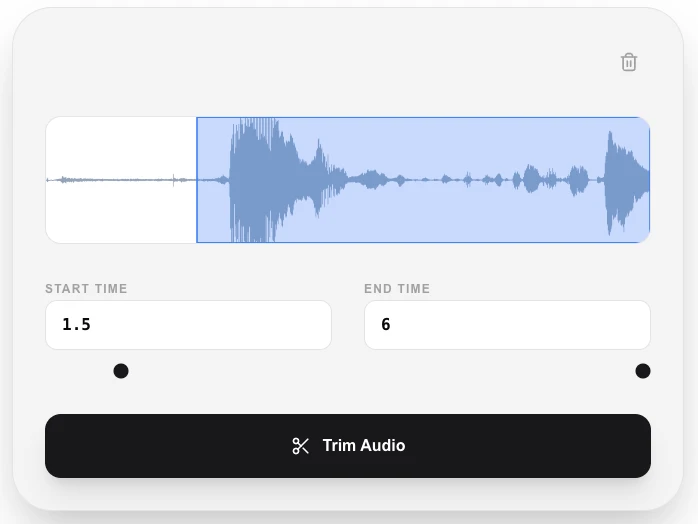
Audio Trimmer
Cut and trim your audio files with millisecond precision.
About Audio Trimmer
Create the perfect ringtone or clip with our precise audio trimmer. Easily cut unwanted beginnings or endings and isolate the exact segment you need from any audio file with professional-grade accuracy.
How to Use
- Select the audio file you wish to trim.
- Use the on-screen handles or time inputs to set your start and end points.
- Click 'Trim Audio' to cut the file in your browser instantly.
- Download your trimmed clip ready for use in any project or as a notification sound.
Common Use Cases
- Creating custom ringtones and notification sounds for your smartphone.
- Removing silence or 'dead air' from the start and end of recordings.
- Isolating a specific sound bite or quote from a long interview or podcast.
Technical Details
Uses high-precision seeking via FFmpeg.wasm to perform 'lossless' cutting where possible, or transcoding to ensure the new file starts exactly at your requested millisecond.
Frequently Asked Questions
- Is it accurate?
- Yes, our tool supports millisecond-level precision, allowing you to cut exactly between words or beats.
- Does it lower sound quality?
- No. When trimming, we maintain the original bitrate and sample rate of your audio file.
- Can I trim an MP3 without losing quality?
- Audio Trimmer performs a lossless cut that removes samples without re-encoding, so there is no generation loss for WAV and FLAC files. For MP3, the output is re-encoded at the same bitrate, which causes minimal but technically non-zero quality change.
- What audio formats can I trim?
- The trimmer accepts MP3, WAV, FLAC, AAC, OGG, and most other common audio formats supported by your browser.
- Can I trim a file to a specific duration, like 30 seconds?
- Yes. Set the start point to the moment you want and the end point to exactly 30 seconds later using the timestamp fields. The tool will cut precisely to those markers.
- Can I trim multiple audio files in one session?
- The Audio Trimmer currently processes one file at a time. Load your file, set the start and end points using the waveform scrubber or by typing exact timestamps, then export the trimmed clip. For batch trimming of multiple files you would need to process each file individually. All trimming is done in your browser using FFmpeg WebAssembly — no audio is uploaded to any server — so the process is as fast as your device allows.
Local processing
Our local file, text and chart tools process content on your device using JavaScript, browser APIs and, where needed, WebAssembly. Our usage events do not include filenames, file contents, input text, chart values, raw errors, emails or license references. Network lookup tools (such as DNS, WHOIS, IP and speed tests) contact external services for their stated purpose. Loading the website, fonts, libraries and models also makes network requests. WebAssembly itself does not prevent network access.
How to Trim Audio Files to Exact Timestamps Without Software
The LokalTools Audio Trimmer lets you cut any audio file to precise start and end points directly in your browser — no software installation, no account, and no file ever uploaded to a server. It supports MP3, WAV, OGG, and other common formats, processing everything locally using the Web Audio API.
Why Audio Editing Feels More Complicated Than It Should
Most people who need to cut a few seconds from a recording don't want to download Audacity, learn its interface, and export a file. They just need to clip an audio file — quickly, privately, and without fuss.
Cloud-based audio editors solve the friction problem, but introduce a new one: your file is uploaded to a third-party server before editing begins. For podcast segments, legal recordings, or anything sensitive, that's an unacceptable trade-off.
How the Browser Audio Trimmer Works
The LokalTools Audio Trimmer uses the Web Audio API — a high-performance audio processing layer built into every modern browser — to decode, slice, and re-encode your audio file entirely on your device.
The process:
- Your file is decoded into raw audio samples in memory using
AudioContext.decodeAudioData - You set the trim start and end points using the visual waveform editor
- The browser extracts the selected audio region and re-encodes it
- The trimmed file downloads directly to your device
No data is sent anywhere. The original file is only read from your local disk — it's never uploaded.
How to Trim an Audio File in 4 Steps
- Open the tool — visit the LokalTools Audio Trimmer and click Upload or drag your audio file onto the page.
- Set your trim points — drag the left and right handles on the waveform to define the start and end of the clip you want to keep.
- Preview — hit Play to confirm the selection sounds right before committing.
- Export — click Trim & Download. The clipped audio file saves immediately to your device.
Common Use Cases for Audio Trimming
Extracting a quote from an interview. You recorded a 40-minute interview and need a 90-second clip for a news piece or social media post. The audio trimmer lets you mark the exact sentence you need.
Cutting silence from the start or end. Voice memos and recordings often start with a few seconds of dead air before you begin speaking. Trimming that silence gives you a clean, professional-sounding file.
Clipping a ringtone. You want to use the chorus of a song as a ringtone. Find the timestamp, trim to 30 seconds, and download. No app needed.
Splitting a long recording. A field recording or lecture captured in one long file is much more useful when broken into chapters. Trim each section and save them separately.
What Audio Formats Are Supported?
The Web Audio API natively decodes MP3, WAV, OGG (Vorbis), AAC, and FLAC in most browsers. MP3 is the safest choice for widest compatibility; WAV works for lossless trimming. The trimmer exports in the same format as your input file.
Does Trimming Reduce Audio Quality?
For WAV and other lossless formats, trimming introduces zero quality loss — it's a precise time-domain cut.
For MP3, re-encoding introduces a very small amount of generation loss (the same slight quality reduction that happens whenever any lossy format is re-encoded). For voice recordings, this is indistinguishable by ear. For music, keep the source in WAV if you want to avoid any loss, then encode to MP3 after trimming.
Privacy: Your Audio File Never Leaves Your Device
Many popular audio trimming websites upload your file to their server, trim it there, and send it back. This means a copy of your audio exists on their infrastructure — often retained for analytics, training data, or compliance. The LokalTools trimmer never touches a server. Your file goes from your disk, through the browser's audio processing engine, and back to your disk.
Frequently Asked Questions
What audio formats can I trim with LokalTools?
The trimmer supports MP3, WAV, OGG, AAC, and FLAC. Support depends on your browser's Web Audio API implementation; MP3 and WAV are universally supported across all major browsers.
Can I trim multiple sections from one file?
The current tool handles one trim region per file. For multi-section editing or chapter splitting, trim each section separately and save each clip individually.
Will trimming change the audio quality?
For lossless formats (WAV, FLAC), trimming is completely lossless. For MP3, re-encoding introduces minimal generation loss — practically inaudible for speech, negligible for casual music listening.
How long can the audio file be?
The Web Audio API can handle files up to several hours long on modern devices. Very large files may take a moment to decode. Files over 500 MB may be slow on older hardware.
Does it work on mobile devices?
Yes. Chrome for Android and Safari for iOS both support the Web Audio API. The waveform editor is touch-friendly, so you can drag trim handles with your finger.
Is the original file overwritten?
No. The trimmer always saves as a new downloaded file. Your original is never modified.
Trim your audio file privately and instantly with LokalTools — no sign-up, no upload, no software required.