JPG to PDF
Convert multiple JPG, PNG, or WebP images into a single professional PDF document.
About JPG to PDF
Transform your images into a clean, unified PDF document. Our JPG to PDF converter allows you to combine multiple photos, screenshots, or scans into a single portable file, complete with orientation controls and instant local processing.
How to Use
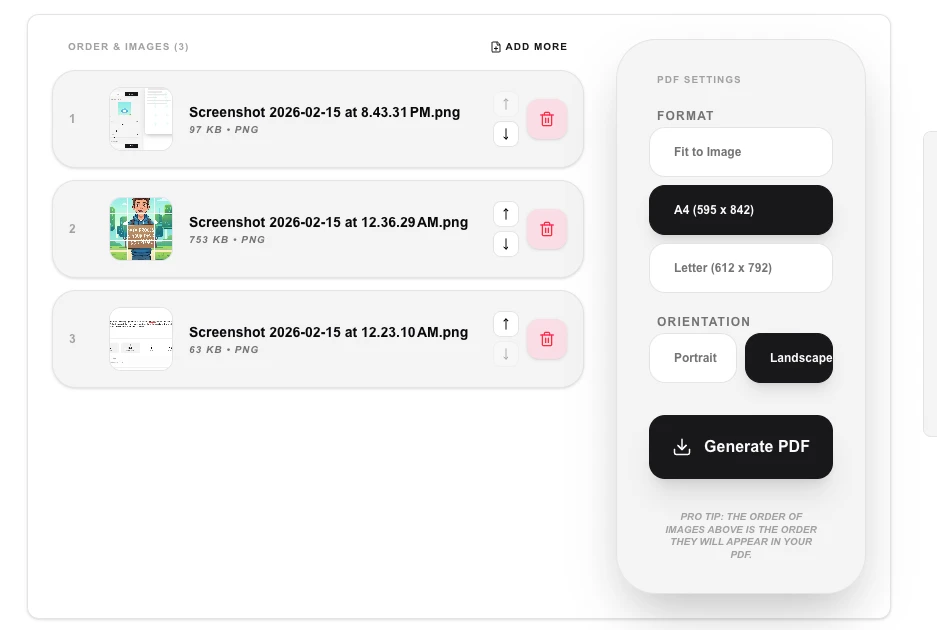
- Upload one or more images (JPG, PNG, or WebP).
- Choose between 'Portrait' or 'Landscape' orientation for your PDF.
- Click 'Generate PDF' to assemble the images into a document stream.
- Download your completed PDF file immediately.
Common Use Cases
- Combining multiple photo scans of a physical document into a single PDF.
- Creating a simple PDF portfolio or presentation from a series of images.
- Standardizing photo attachments for job applications or official government submissions.
Technical Details
Uses pdf-lib to embed image buffers into a new PDF document. Images are compressed and scaled to fit the requested page orientation entirely on the client-side.
Frequently Asked Questions
- Can I mix PNG and JPG?
- Yes, our converter accepts various image formats and will combine them seamlessly into the same PDF.
- Does it change the image quality?
- We maintain the original resolution of your images while ensuring they are properly formatted for the PDF container.
- Can I control the page size the images are placed on?
- Yes. Choose from standard sizes like A4, Letter, or Legal, or select 'Fit to image' to create a page that matches each image's exact dimensions — ideal for photo albums or scanned documents.
- What is the maximum number of images I can combine?
- There is no enforced server limit since everything runs in your browser. In practice, combining dozens of high-resolution images may be slow on lower-powered devices due to memory constraints. Resizing very large images before converting can help.
- Does converting to PDF reduce my image quality?
- Images are embedded in the PDF at their original resolution using pdf-lib. There is no re-compression step, so the quality is preserved. The only exception is if you explicitly reduce the output quality setting to produce a smaller PDF file size.
- Can I set the page orientation and margins when converting JPGs to PDF?
- Yes. Before converting you can choose portrait or landscape page orientation, select a standard page size (A4, Letter, A3, etc.), and adjust the margin around each image. You can also choose whether each image fills the page or is centered with white borders. These controls give you a clean, professional PDF layout suitable for presentations, portfolios, or reports. All conversion is done in your browser using PDF-lib — no images are uploaded to any server.
Local processing
Our local file, text and chart tools process content on your device using JavaScript, browser APIs and, where needed, WebAssembly. Our usage events do not include filenames, file contents, input text, chart values, raw errors, emails or license references. Network lookup tools (such as DNS, WHOIS, IP and speed tests) contact external services for their stated purpose. Loading the website, fonts, libraries and models also makes network requests. WebAssembly itself does not prevent network access.