
Video to MP3
Extract the audio track from your video files and save it as a high-quality MP3.
About Video to MP3
Convert your video files into crystal-clear MP3 audio. This tool is optimized for high-fidelity audio extraction, allowing you to choose your desired bitrate for the perfect balance between file size and sound quality.
How to Use
- Upload the video file containing the music or speech you want to extract.
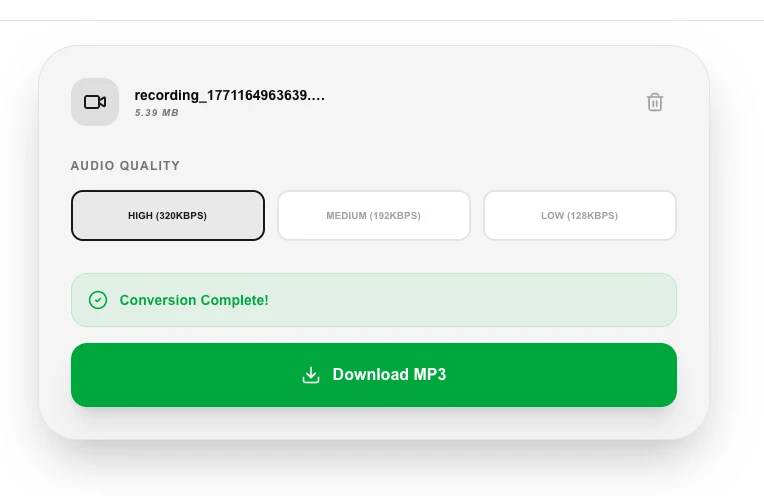
- Select your preferred 'Audio Quality' (e.g., 320kbps for the best results).
- Click 'Convert to MP3' to start the local transcoding process.
- Download your high-quality MP3 file once the extraction is finished.
Common Use Cases
- Creating an MP3 library from personal concert recordings or music videos.
- Saving interviews or speeches as easy-to-manage audio files for podcasts.
- Reducing large video files into compact audio-only formats for easier storage.
Technical Details
Uses high-performance MP3 encoding libraries within the browser to transcode the video's audio stream at your specified bitrate. Everything stays local for local file processing.
Frequently Asked Questions
- Which bitrate should I choose?
- 320kbps (High) is recommended for music, while 128kbps (Low) is often sufficient for voice-only recordings like lectures.
- Is it better than 'Audio Extractor'?
- Our Audio to MP3 tool gives you more control over the bitrate and quality settings specifically for the MP3 format.
- What video formats can I convert to MP3?
- The tool supports MP4, MOV, AVI, MKV, WebM, FLV, and most other common video containers. If FFmpeg can read it, the tool can extract the audio.
- How long does the conversion take?
- Conversion time depends on your device speed and file size. FFmpeg runs fully in your browser using WebAssembly, so a typical 5-minute video usually converts in under a minute on a modern laptop.
- Can I convert a YouTube video to MP3?
- This tool converts video files you have already downloaded to your device. It cannot download videos from YouTube or other streaming platforms — you would need a separate downloader tool for that step.
- Does converting video to MP3 preserve the full audio quality from the original?
- Quality depends on the audio codec in your source video. If the original uses AAC or MP3 audio, extracting at a bitrate equal to or lower than the source preserves the maximum available quality — you cannot exceed the quality of the original encoding. Choosing a higher bitrate than the source does not improve quality and only wastes file space. For the best results, select 320 kbps for music-quality audio or use FLAC/WAV lossless output if your source has uncompressed audio. Processing runs entirely in your browser.
Local processing
Our local file, text and chart tools process content on your device using JavaScript, browser APIs and, where needed, WebAssembly. Our usage events do not include filenames, file contents, input text, chart values, raw errors, emails or license references. Network lookup tools (such as DNS, WHOIS, IP and speed tests) contact external services for their stated purpose. Loading the website, fonts, libraries and models also makes network requests. WebAssembly itself does not prevent network access.