
Extract Frames (to JPG)
Capture high-resolution frames and thumbnails from any video file.
About Extract Frames (to JPG)
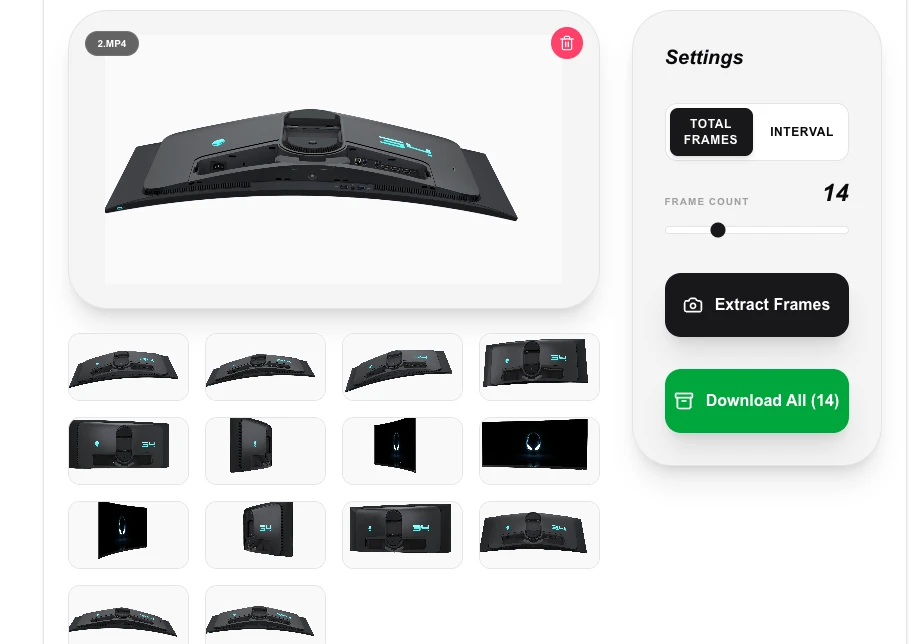
Turn your video scenes into high-quality images with our frame extractor. Whether you need a specific thumbnail, a high-res still for a project, or a series of frames for analysis, this tool lets you precisely capture what you need.
How to Use
- Upload your video file to the workspace.
- Choose between 'Total Frames' (to get a specific count) or 'Interval' (to get a frame every N seconds).
- Click 'Extract Frames' and watch the thumbnails generate locally.
- Download individual frames or use 'Download All' to get a ZIP file of all results.
Common Use Cases
- Creating professional thumbnails for YouTube or other video platforms.
- Capturing high-quality stills from home movies for printing or digital frames.
- Extracting a sequence of frames for stop-motion analysis or cinematic study.
Technical Details
Utilizes the browser's video decoding capabilities or FFmpeg.wasm to seek to specific timestamps and 'snapshot' frames onto a canvas for export. No data is sent to a server.
Frequently Asked Questions
- What is the image format?
- Frames are exported as high-quality JPG images by default to ensure wide compatibility and efficient file sizes.
- Can I pick a specific millisecond?
- Currently, you can set the frequency or total count. For extremely precise seeking, using a lower 'Every N Sec' value will give you more granularity.
- How do I extract a specific frame at an exact timestamp?
- Enter the timestamp (hours:minutes:seconds or seconds) in the time field and click Extract. The tool will seek to that exact position in the video and capture the frame.
- Can I extract all frames from a video at once?
- You can set an interval (e.g., every 1 second) to extract frames automatically throughout the video. For very long videos this may generate a large number of images, so a longer interval is recommended.
- What resolution will the extracted frames be?
- Extracted frames match the native resolution of the source video. A 1080p video produces 1920×1080 JPG images. No upscaling or downscaling is applied unless you specify otherwise.
- Can I extract frames as PNG instead of JPEG for better quality?
- Yes. By default frames are exported as JPEG for smaller file sizes, but you can switch the output format to PNG for lossless quality — useful when extracting frames to edit in a photo editor or when you need pixel-accurate captures without compression artifacts. Keep in mind that PNG files are significantly larger than JPEG. The extraction runs entirely in your browser using FFmpeg WebAssembly so no video is uploaded, but PNG output from long high-resolution videos may use more browser memory.
Local processing
Our local file, text and chart tools process content on your device using JavaScript, browser APIs and, where needed, WebAssembly. Our usage events do not include filenames, file contents, input text, chart values, raw errors, emails or license references. Network lookup tools (such as DNS, WHOIS, IP and speed tests) contact external services for their stated purpose. Loading the website, fonts, libraries and models also makes network requests. WebAssembly itself does not prevent network access.
How to Extract Frames from Video Locally—No Upload Required
You can extract a pixel-perfect frame from any video directly in your browser, without uploading the file to any server. The HTML5 Canvas API reads your local video, captures the frame at the exact timestamp you choose, and exports it as a JPEG or PNG—all in milliseconds.
We have all encountered this exact scenario. You have a high-definition MP4, and you need a single, pristine frame from it. Maybe you need a video thumbnail, a specific slide from a recorded presentation, or an asset for a blog post.
The traditional reflex is terrible. You pause the video player, try to hide the progress bar, and hit Print Screen. You end up with a low-resolution, compressed mess. The slightly better, yet wildly inefficient alternative is uploading the entire gigabyte-sized MP4 to a third-party server, waiting in a queue, and downloading a 200KB image.
Transmitting a massive video file across the internet just to extract a single still image is objectively bad engineering.
When we were mapping out the utility suite at MLOGICTECH, we wanted a better way. We wanted a tool that executed this instantly, locally, and securely. By leveraging the HTML5 <video> element alongside the Canvas API, you can scrub through a video and extract pixel-perfect frames directly on your own machine. Zero uploads. Zero server queues.
Here is exactly how this client-side architecture works, the real-world performance hurdles we hit, and when you should actually avoid doing this locally.
How Does the Browser Extract a Video Frame Without a Server?
The underlying tech stack for extracting a frame entirely within the browser relies on two standard HTML5 elements talking to each other.
First, we use the <video> element to load the local file. Because we are operating strictly client-side, we do not need a server path. We simply take the user's uploaded file and generate a temporary local URL using URL.createObjectURL(file). This allows the browser's native video engine to decode and load the MP4 directly from your hard drive or RAM.
Once the video is loaded, we programmatically set the video.currentTime to the exact timestamp you want to capture.
Next, the <canvas> element steps in. The Canvas API is a browser-native 2D drawing surface that can accept a live <video> element as an input source. Think of it as a blank digital painting board that can take an instantaneous snapshot of any video frame.
When we call canvas.getContext('2d').drawImage(video, 0, 0, width, height), the canvas takes a pixel-by-pixel snapshot of whatever frame the video element is currently resting on.
Once the image is painted onto the canvas, we simply export it. The canvas.toBlob() method packages that painted frame into a raw binary image file (like a JPEG or PNG) that you can download instantly.
Why Is Local Frame Extraction More Private Than Cloud Tools?
Why go through the effort of building a local Canvas API pipeline? It comes down to data sovereignty and bandwidth.
Let's say the video you are trying to extract a frame from is a recorded internal Zoom meeting showing unreleased financial data. Pushing that MP4 to a free, ad-supported "thumbnail extractor" server is a massive security risk. You have zero guarantee that the server isn't keeping a copy of your file.
By handling the extraction via the browser's Canvas API, the file never actually leaves your device. At MLOGICTECH, we built LokalTools around this exact philosophy. Your browser simply reads the local file, decodes the frame, and hands you the image.
You also eliminate the network bottleneck. Uploading a large MP4 over a standard Wi-Fi connection can take minutes. In our testing, local canvas extraction happens in milliseconds—the only limit is how fast your CPU can decode the video codec.
How Did We Solve the Memory Problem for Batch Frame Extraction?
Building a single-frame extractor is simple. Building a tool that extracts hundreds of frames reliably is a completely different beast.
When prototyping the batch frame extractor for LokalTools, the goal was to allow users to generate sprite sheets or image sequences. The initial code looped through the video, painted the canvas every second, and exported the image using canvas.toDataURL('image/jpeg'). All outputs were pushed into a giant JavaScript array.
Testing it on a 4K video caused the browser tab to crash with an "Out of Memory" exception within thirty seconds.
The Gotcha: The Base64 memory trap.
The toDataURL() method converts the canvas image into a Base64-encoded string. Base64 is notoriously bloated—it inflates the file size by roughly 33% compared to raw binary data. Holding three hundred 4K images in active memory as giant text strings is a guaranteed way to exhaust the browser's heap limit.
The Fix: We had to completely abandon Base64 strings. Instead, we architected the tool around canvas.toBlob().
Blobs represent raw binary data. They are significantly smaller and memory-efficient. But we didn't stop there. Instead of holding all those Blobs in RAM, we stream them directly into a compressed ZIP archive using a background Web Worker. As soon as a frame is zipped, we explicitly tell the browser's garbage collector to destroy the temporary data.
We also learned a hard lesson about the browser's event loop. You cannot just change the video.currentTime and immediately call drawImage(). The video decoder needs a few milliseconds to catch up. If you don't wait for the video element to fire the seeked event, your canvas will just export a solid black square.
When Should You Use a Cloud-Based Frame Extractor Instead?
Client-side extraction is fast and secure, but we are always transparent about its physical limits. Browsers are powerful, but they are not supercomputers.
Local extraction relies heavily on the specific hardware you are using. If you are using an M-series MacBook or a modern desktop rig, the browser will scrub through a 1080p MP4 and output frames faster than you can blink.
However, if you are using a five-year-old budget smartphone and attempting to extract 5,000 individual frames from an unoptimized 4K movie, your device will suffer. The browser has to decode the video, paint the canvas, and encode the JPEG on a limited CPU. The phone will heat up, the battery will drain, and the browser will likely throttle the process.
For massive, automated batch jobs—like a media company generating thumbnails for an archive of 100,000 videos—a dedicated cloud server running FFmpeg with hardware-accelerated GPUs is the correct architectural choice. Furthermore, while the Canvas API is great for standard needs, modern browser engines are actively rolling out the WebCodecs API, which bypasses the DOM entirely for even faster, direct GPU frame access.
But for standard daily tasks—grabbing a high-res cover photo for a YouTube video, pulling a slide from a lecture, or securing a frame from a private family video—local Canvas extraction is vastly superior.
Try It Yourself
Stop pausing your media player and relying on clunky screenshot shortcuts. Keep your bandwidth open and your files completely secure on your own machine.
Head over to the LokalTools Video Frame Extractor. Drop a high-definition MP4 directly into your browser. Watch how quickly your local machine can scrub the timeline and output pixel-perfect JPEGs, all without a single byte ever touching a remote server.
Frequently Asked Questions
What is the Canvas API?
The Canvas API is a browser-native JavaScript interface for drawing 2D graphics on an HTML <canvas> element. It can accept image files, image URLs, and live <video> elements as drawing sources—which is what makes local video frame extraction possible without any server-side code.
Does extracting a video frame in the browser require uploading the file?
No. The browser reads the video file directly from your local storage using URL.createObjectURL(). The file never leaves your device. The Canvas API decodes the frame entirely within your browser's memory.
What video formats can be extracted locally? Any video format your browser's native video decoder supports. This includes MP4 (H.264, H.265 on supported browsers), WebM (VP8, VP9), and OGG. Exotic or proprietary formats may not be supported without additional codecs.
Why does the extracted frame sometimes come out as a black image?
This is a timing issue. After changing video.currentTime, the video decoder needs time to seek to that exact frame. If you call drawImage() before the video fires the seeked event, the canvas captures a blank frame. The fix is to always wait for the seeked event before drawing.
How many frames can you extract from a video in the browser?
There is no hard limit, but RAM is the practical constraint. For batch extraction, using canvas.toBlob() instead of canvas.toDataURL() and streaming frames directly into a ZIP archive via a Web Worker allows extraction of hundreds or thousands of frames without crashing the browser tab.
Is local frame extraction faster than using an online tool? For single or small batches of frames, yes—significantly faster. There is no upload time, no server queue, and no download step. The only delay is the time for your CPU to decode the video and render the canvas, which is typically under a second for HD video on modern hardware.
What is the difference between the Canvas API and the WebCodecs API for frame extraction? The Canvas API draws frames through the browser's rendering pipeline (the DOM). The WebCodecs API bypasses the DOM entirely, giving you direct access to individual compressed and uncompressed video frames at near-native GPU speed. WebCodecs is faster for high-volume extraction but has more limited browser support than the Canvas API as of 2026.