
Text Finder & Replacer
Find and replace text or patterns using Regex.
About Text Finder & Replacer
Perform bulk find and replace operations on your text with precision. This tool supports simple text matching as well as advanced Regular Expressions (Regex), making it an essential utility for developers and writers cleanup tasks.
How to Use
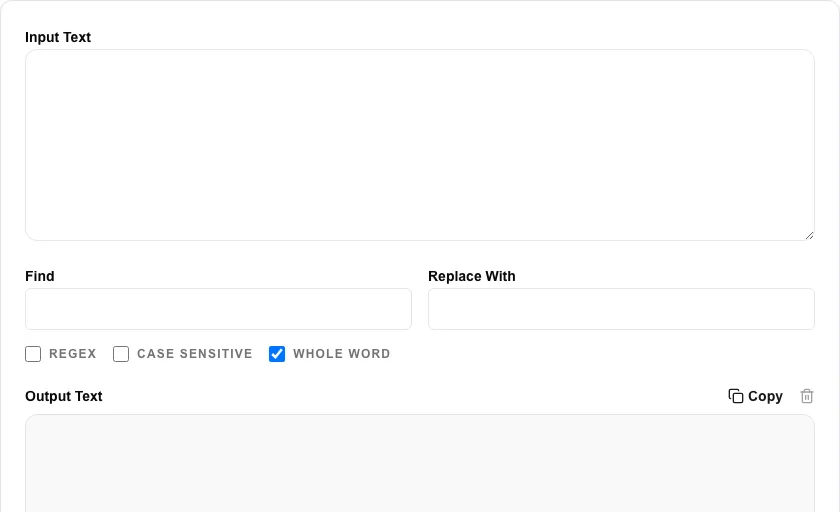
- Paste your source text into the Input Text area.
- Enter the string or Regex pattern you want to search for in the 'Find' box.
- Enter the replacement text in the 'Replace With' box.
- Toggle options like Case Sensitive or Regex, and watch the output update automatically.
Common Use Cases
- Quickly replacing names or dates throughout a long document.
- Using Regex to reformat lists or cleanup data logs.
- Bulk changing variable names in code snippets.
Technical Details
Uses the standard JavaScript .replace() method with support for global matching and Regex flags. All processing is local.
Frequently Asked Questions
- What is Regex?
- Regex (Regular Expression) is a powerful language used to match complex patterns in text rather than just literal strings.
- Does this work for multiple occurrences?
- Yes, our tool automatically replaces all occurrences that match your 'Find' criteria within the entire text.
- How do I use regex in the find-and-replace tool?
- Enable the regex toggle, then enter a regular expression pattern in the Find field. For example, \d+ matches any sequence of digits. Use capture groups in the pattern and $1, $2 in the Replace field to insert matched portions into the replacement.
- What is the difference between Replace and Replace All?
- Replace substitutes only the first occurrence of the search term. Replace All substitutes every occurrence in the text. Use Replace All with regex to make global transformations, such as reformatting all dates in a document at once.
- How do I replace line breaks using this tool?
- Enable regex mode and use \n to match newline characters in the Find field. For example, to replace every line break with a comma, enter \n in Find and , (comma-space) in Replace, then click Replace All.
- Can I save and reuse a set of replacement rules for repeated use?
- The Text Replacer currently applies replacements for the current session only — there is no built-in save or rule-export feature. For a repeatable workflow, keep your find-and-replace rule pairs in a text file or spreadsheet and paste them in each session. If you need persistent, scriptable text replacement, command-line tools like sed, awk, or a Python script with re.sub() are more efficient for repeating the same transformations across multiple files or regular automation tasks.
Local processing
Our local file, text and chart tools process content on your device using JavaScript, browser APIs and, where needed, WebAssembly. Our usage events do not include filenames, file contents, input text, chart values, raw errors, emails or license references. Network lookup tools (such as DNS, WHOIS, IP and speed tests) contact external services for their stated purpose. Loading the website, fonts, libraries and models also makes network requests. WebAssembly itself does not prevent network access.