Image Resizer
Change image dimensions to specific widths and heights.
About Image Resizer
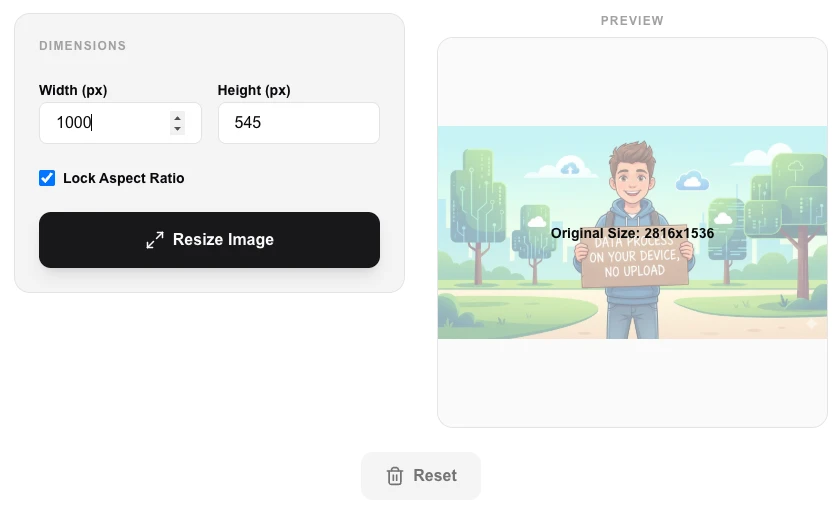
Adjust your image dimensions to suit any layout or platform. Our resizer allows you to set specific widths and heights while maintaining the original aspect ratio, ensuring your photos look great on everything from mobile screens to desktop banners.
How to Use
- Pick the image you need to resize from your storage.
- Enter your target Width or Height in pixels (px).
- Ensure 'Lock Aspect Ratio' is checked if you want to prevent stretching or squishing.
- Click 'Resize Image' and download the result locally.
Common Use Cases
- Preparing banners and hero images for specific website container widths.
- Resizing social media graphics (like Instagram or Facebook headers) to exact requirements.
- Downscaling high-resolution photos for faster display in web galleries.
Technical Details
Uses canvas interpolation to recalculate pixel values for the new dimensions, providing smooth scaling for both upscaling and downscaling.
Frequently Asked Questions
- Will my image look blurry?
- Downscaling looks great. Upscaling significantly can lead to some blurriness as new pixels are mathematically estimated.
- Can I resize multiple images at once?
- This tool is for single-image precision. For multiple images, check out our 'Bulk Image Resizer'.
- Does my image get uploaded anywhere when I resize it?
- No. Image Resizer processes everything locally in your browser. Your image never touches a server — resizing is done using the HTML Canvas API on your device.
- How do I resize to a specific pixel size without distorting the image?
- Enable the 'Maintain Aspect Ratio' option, then enter either the target width or height. The other dimension will calculate automatically to keep the image proportions correct.
- What is the maximum image size I can resize?
- There is no fixed limit imposed by the tool — it depends on your device's available memory. Modern devices handle images up to 50 MP or more. Very large files may be slower to process.
- Can I resize while keeping the same aspect ratio to avoid distortion?
- Yes. The Image Resizer has a "Lock aspect ratio" toggle that is on by default. When enabled, entering a new width automatically updates the height to maintain the original proportions, and vice versa. To force specific dimensions that change the ratio (for example a square thumbnail from a landscape photo), unlock the ratio first. To resize without distortion and also change the aspect ratio, consider using the Image Cropper first to set the target ratio, then resize to the final dimensions.
Local processing
Our local file, text and chart tools process content on your device using JavaScript, browser APIs and, where needed, WebAssembly. Our usage events do not include filenames, file contents, input text, chart values, raw errors, emails or license references. Network lookup tools (such as DNS, WHOIS, IP and speed tests) contact external services for their stated purpose. Loading the website, fonts, libraries and models also makes network requests. WebAssembly itself does not prevent network access.