
Image Compressor
Reduce image file size while keeping visual quality.
About Image Compressor
Optimize your images for faster web performance without losing visual quality. Our compressor reduces file sizes significantly, helping your pages load faster and improving your site's SEO while saving valuable bandwidth.
How to Use
- Choose the image you want to compress from your device.
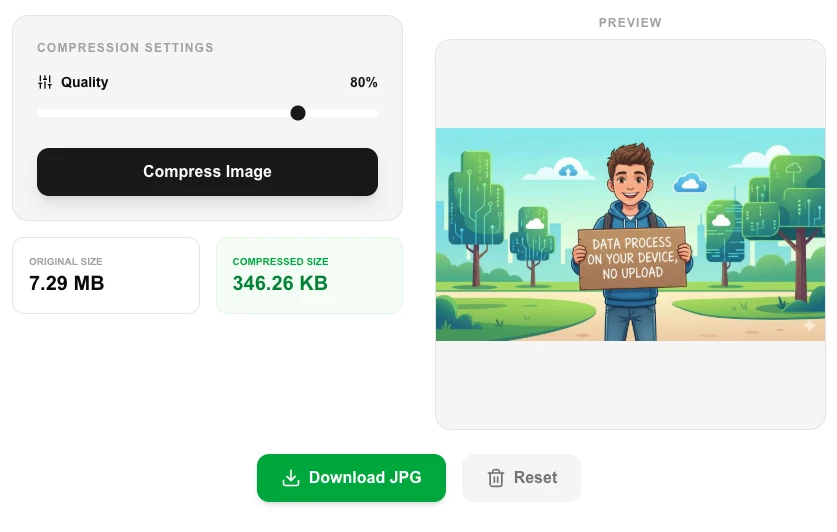
- Adjust the 'Quality' slider (80% is usually the sweet spot for web).
- Click 'Compress Image' to see the instant reduction in file size.
- Download the optimized file and compare the final size with the original.
Common Use Cases
- Reducing large camera photos for use in blog posts and articles.
- Optimizing website assets to improve Core Web Vitals and PageSpeed scores.
- Compressing images before sharing them via email or social media to save data.
Technical Details
Uses browser-native canvas compression algorithms (for JPG/WEBP) or specialized local processing logic to strip metadata and optimize pixel data.
Frequently Asked Questions
- Will I lose image quality?
- At 80-90% quality, the difference is virtually invisible to the human eye while the file size is greatly reduced.
- Does it support PNG?
- Yes, it can compress PNGs by optimizing the color palette and removing unnecessary data chunks.
- Is my photo sent to a server to be compressed?
- No. All compression happens locally in your browser using the Canvas API. Your image is never uploaded anywhere — it stays entirely on your device.
- What quality setting should I use for web images?
- For most web use cases, a quality setting between 70–85% gives an excellent balance of visual quality and file size reduction, often shrinking files by 50–70% with no visible degradation.
- Does compressing a PNG convert it to JPG?
- PNG files are re-exported as optimized PNG or can be saved as JPG depending on your chosen format. JPG compression is lossy, so the quality slider applies; PNG output uses lossless optimization.
- Does the Image Compressor support batch compression of multiple images?
- The Image Compressor currently processes one image at a time, giving you precise control over the quality setting for each file. To compress multiple images at once, use the Bulk Image Resizer which also includes a compression quality slider for batch jobs. Both tools run entirely in your browser using the Canvas API — no images are uploaded to any server. If you need automated batch compression for a large library, command-line tools like ImageMagick or Squoosh CLI are good options.
Local processing
Our local file, text and chart tools process content on your device using JavaScript, browser APIs and, where needed, WebAssembly. Our usage events do not include filenames, file contents, input text, chart values, raw errors, emails or license references. Network lookup tools (such as DNS, WHOIS, IP and speed tests) contact external services for their stated purpose. Loading the website, fonts, libraries and models also makes network requests. WebAssembly itself does not prevent network access.
Learn more
Read the full guide →