
Passport Photo Formatter
Format and resize photos to match common passport and ID photo dimensions with alignment guides.
About Passport Photo Formatter
Format your photos to match common passport and ID sizing standards directly in your browser. Our tool provides sizing templates and alignment guides to help you crop and frame your photo — saving you a trip to the photo booth. Always verify your country's exact requirements before submission.
How to Use
- Upload a well-lit photo taken against a plain, light background.
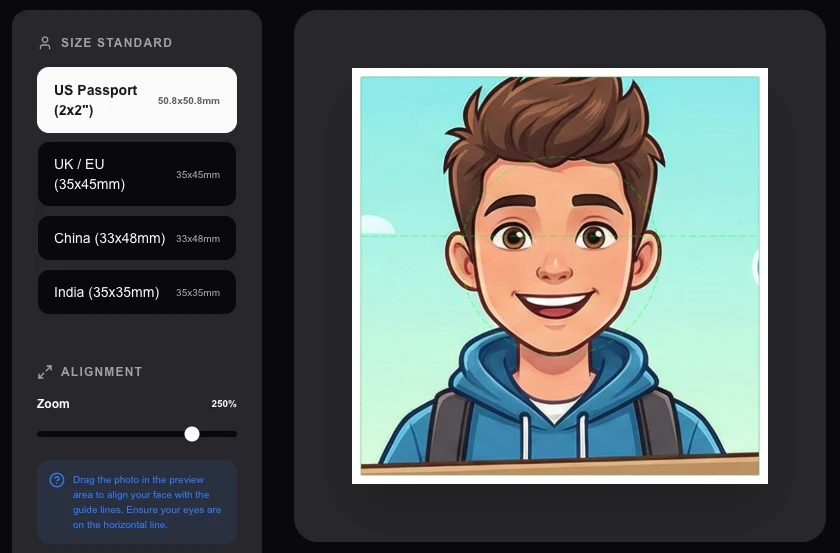
- Select the size standard for your country (e.g., US 2x2 inch, UK/EU 35x45mm).
- Use the on-screen alignment guides to center your face and shoulders.
- Download a single digital file or a 'Print Sheet' with multiple copies ready for 4x6 printing.
Common Use Cases
- Formatting photos to common passport, visa, and ID size standards as a starting point.
- Creating standardized badge or employee ID photos within common dimensions.
- Previewing photo framing and alignment before visiting a professional photo service.
Technical Details
Implements geometric aspect ratio locking and precise millimeter-to-pixel conversion based on publicly available size standards. Processing runs locally in your browser.
Frequently Asked Questions
- What background should I use?
- Most countries require a plain white or off-white background with no shadows or cluttered objects behind you. Always verify your specific country's background requirements.
- Will these photos be accepted by the government?
- We cannot guarantee acceptance. Government photo requirements vary by country and change over time. This tool formats images to common size standards only — always verify exact requirements with your local issuing authority.
- Is my photo uploaded to a server to make a passport photo?
- No. The entire process runs in your browser. Your photo is cropped and formatted locally using the Canvas API — no image is ever sent to any server or third party.
- Does this tool meet official passport photo requirements?
- The tool formats your photo to standard dimensions and aspect ratios used by common passport and ID standards. However, always verify the specific requirements for your country's application — requirements can vary (e.g. background color, head size percentage).
- Can I print the output directly for a passport application?
- The tool generates a printable sheet with multiple copies of your formatted photo at the correct dimensions. Print it at the correct DPI (usually 300 DPI) on a photo printer or at a print shop for best results.
- What are the standard passport photo dimensions for different countries?
- Photo requirements vary by country. The US requires 2×2 inches (51×51 mm). The UK requires 35×45 mm. Most EU Schengen countries use 35×45 mm. Australia requires 35×45 mm. India requires 35×45 mm or 2×2 inches depending on the document. Canada requires 50×70 mm. The tool includes presets for the most common formats. After selecting your country preset, the crop area adjusts automatically. Always verify the current specifications with the issuing authority before printing, as requirements change.
Local processing
Our local file, text and chart tools process content on your device using JavaScript, browser APIs and, where needed, WebAssembly. Our usage events do not include filenames, file contents, input text, chart values, raw errors, emails or license references. Network lookup tools (such as DNS, WHOIS, IP and speed tests) contact external services for their stated purpose. Loading the website, fonts, libraries and models also makes network requests. WebAssembly itself does not prevent network access.
How to Make a Passport Photo at Home for Free
Getting a passport photo has always felt like an unnecessary errand. You need to find a pharmacy or photo studio, pay $15–25, wait, and hope the lighting that day was flattering enough for a document you'll carry for ten years. The whole process is designed for the pre-smartphone era — before everyone had a high-resolution camera in their pocket.
The LokalTools Passport Photo Maker flips that model. Upload a selfie or portrait photo, adjust the crop, and download a print-ready image that meets official requirements — all inside your browser. Your image never leaves your device.
What Makes a Passport Photo "Compliant"?
Governments are picky about passport photos for practical reasons: facial recognition systems and human reviewers need clear, standardized images. The typical requirements stack up like this:
- Size: 2×2 inches (51×51 mm) for US passports; similar dimensions for UK, EU, Canada, and Australia
- Head position: Centered, facing directly forward, with both ears visible
- Expression: Neutral mouth, open eyes — no squinting, no smiling with teeth (for most countries)
- Background: Plain white or off-white, no patterns, no shadows
- Lighting: Even, no harsh shadows across the face or behind the head
- Recency: Taken within the past 6 months (a rule only the application reviewer can check, but worth noting)
Failure to meet any of these can result in your application being rejected or delayed, which is a painful outcome when you have a flight booked.
Taking a Good Source Photo
The tool is only as good as your input photo. Here's how to set yourself up for a compliant result without any studio equipment:
Lighting is everything. Stand facing a window with natural daylight. Avoid overhead lighting that casts shadows under your eyes and nose. A white wall or sheet hung behind you provides the required plain background.
Phone height matters. Hold your phone at eye level, not below — shooting upward distorts facial proportions. Use a tripod or prop it against something stable.
Distance. Stand about 1–1.5 metres from your phone. This gives the camera enough working distance to compress the image naturally and keeps background blur minimal.
Expression. Relax your face. Slightly part your lips or keep them closed — don't grin. Look directly into the lens, not at the screen preview.
Clothing. Wear everyday clothes. Avoid white tops that blend into the background. Religious headwear is permitted if worn daily for religious reasons in most countries.
Using the Passport Photo Maker
Once you have a decent source photo:
Open the tool at lokaltools.com/en/tools/passport-photo-maker. No sign-up needed.
Upload your photo. Click or drag your file into the tool. Supported formats include JPEG, PNG, and HEIC (from iPhone).
Crop to your face. The tool presents a crop guide with the correct aspect ratio. Position the handles so your head fills roughly 70–80% of the frame, centered horizontally, with a small margin above the top of your head.
Check the background. If your background is already white or light grey, you're done. Many tools (including this one) can remove or replace the background if it's too busy or dark.
Preview and export. Download as a high-resolution JPEG ready for home printing or digital submission.
Printing at the Right Size
Downloading the image is step one; printing it correctly is step two. Most home printers or online print services (Walgreens, CVS, Snapfish) let you specify "passport photo" as a print size, which places two 2×2-inch crops on a 4×6-inch print. That's the standard format most government offices and embassies will accept.
If you're submitting digitally (which is increasingly common for visa applications and passport renewals), the file requirements are usually:
- JPEG format
- Under 240KB (some portals go up to 10MB)
- Minimum 600×600 pixels for the US State Department's system
The LokalTools export respects these constraints — you get a clean, correctly sized file without needing to resize it yourself.
Privacy: Why Processing Locally Matters
Your passport photo contains your face — biometric data, legally speaking. When you upload that image to a cloud-based photo service, you're trusting that service with data that is, in most jurisdictions, classified as sensitive personal information under GDPR, CCPA, and similar frameworks.
LokalTools processes everything in your browser using WebAssembly and the Canvas API. The image is decoded and manipulated on your own hardware. Nothing is transmitted to any server. There are no server logs of your image, no copies retained after you close the tab, no account to hack.
For a photo you're about to attach to a government identity document, that level of privacy is worth more than it might initially seem.
Common Mistakes to Avoid
Glasses. Most countries now prohibit glasses in passport photos due to glare interference with biometric scanning. Remove them for the photo.
Hat or head covering. Non-religious headwear is not allowed. Remove caps, beanies, and hoods before shooting.
Filters or editing. Do not apply beauty filters, contrast adjustments, or skin smoothing after taking the photo. The government reviewer is looking for an accurate likeness, not a flattering one.
Dark background. If your source photo has a dark or cluttered background and you don't have a background removal tool, retake it. The background requirement is strictly enforced.
Cropping too tight. Don't trim all the way to your hairline. Leave about 2–3mm of space above the top of your head within the crop.
Digital vs. Printed Submission
An increasing number of countries and visa services accept or even require digital passport photos:
- UK passport renewal now accepts digital photos submitted via the GOV.UK portal
- US Global Entry and TSA PreCheck accept digital photos during the online enrollment process
- Many national visa applications use online forms with digital photo uploads
For these, the LokalTools export is ready to use as-is. For physical submissions (post offices, embassies accepting paper applications), take your downloaded file to a home printer or photo kiosk.
Country-Specific Dimensions
While 2×2 inches is the US standard, other countries differ slightly:
| Country | Size | Head height |
|---|---|---|
| USA | 51×51 mm | 25–35 mm |
| UK | 45×35 mm | 29–34 mm |
| Canada | 50×70 mm | 31–36 mm |
| EU (Schengen) | 35×45 mm | 32–36 mm |
| Australia | 45×35 mm | 32–36 mm |
The LokalTools Passport Photo Maker supports standard presets for multiple countries, so you can select the right format before downloading.
Saving Money Over the Long Term
A two-pack of passport photos from a pharmacy costs $10–25 in the US, more internationally. A family renewing passports together (two adults, two kids) can easily spend $60–80 just on photos. With LokalTools, the only cost is a few sheets of 4×6 photo paper — under $0.20 each at most home printers. Even if you print at a pharmacy's self-service kiosk, you're paying $0.29 per 4×6 print, not $10 per photo.
That's a mundane saving, but it adds up over a lifetime of renewals, visa applications, and ID card renewals.
Wrap Up
Passport photos don't need to be a paid, in-person errand. A decent-lit selfie, the right cropping tool, and a home printer or photo kiosk gets you a compliant, professional-looking photo in under ten minutes — without uploading your biometric data to any cloud service.
The LokalTools Passport Photo Maker handles the crop, size, and export. You handle the lighting. Your files never leave your device.