
Photo Filters (Instagram)
Apply aesthetic filters and adjustments to your photos instantly.
About Photo Filters (Instagram)
Enhance your photos with over a dozen professional aesthetic filters. From vintage film looks to modern high-contrast styles, our local filter engine lets you transform any photo instantly without any cloud processing.
How to Use
- Select your image from your gallery or drag it into the filter area.
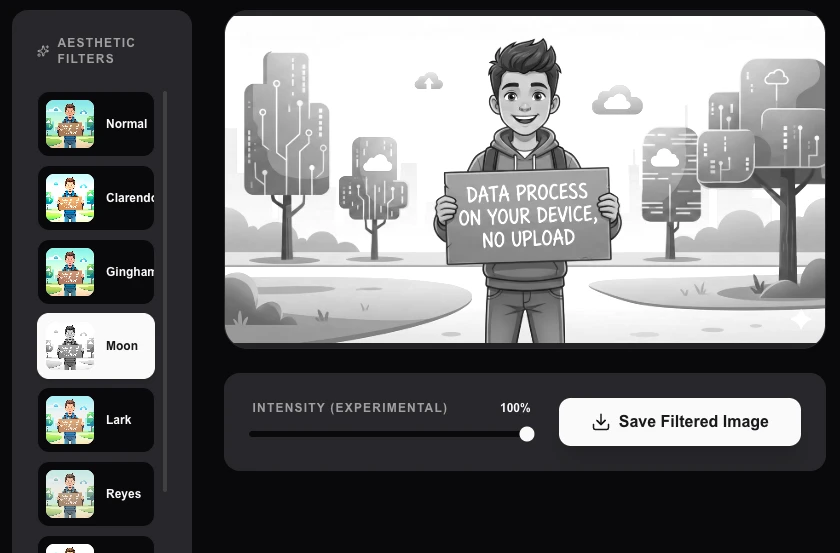
- Browse and click on different filter presets to see the preview.
- Use the 'Intensity' slider to find the perfect balance for your shot.
- Download your enhanced photo as a high-quality JPG or PNG.
Common Use Cases
- Quickly editing personal photos for Instagram, Facebook, or Pinterest.
- Giving a consistent 'Vibe' or brand look to a series of marketing images.
- Correcting lighting and mood in amateur shots without using complex software.
Technical Details
Uses high-performance CSS and Canvas filters (brightness, contrast, sepia, hue-rotate) to apply non-destructive visual adjustments. Your original pixels only leave your device once you share the final file.
Frequently Asked Questions
- Is it free to use?
- Yes! All filters are 100% free and don't require any subscription or account.
- Does it work on mobile?
- Absolutely. Our photo filters are fully responsive and work great on iPhone and Android mobile browsers.
- Are my photos processed on a server to apply the filters?
- No. Filters are applied using WebGL shaders directly in your browser. Your photo never leaves your device — all processing is GPU-accelerated locally with complete privacy.
- What kinds of filters are available?
- The tool offers a range of Instagram-style color grading filters including warm tones, cool tones, vintage effects, black and white, high contrast, fade, and more. Each filter can be adjusted with an intensity slider.
- Will applying a filter reduce my image quality?
- The filter is applied at full resolution with minimal quality loss. The output is exported as a high-quality JPG or PNG. WebGL processing preserves color accuracy far better than repeated browser canvas operations.
- Can I preview filters before applying them and compare before/after?
- Yes. The Photo Filters tool shows a live preview of each available filter applied to your image as thumbnail swatches, so you can compare all options at a glance before committing. Click any filter to apply it and see a full-size preview. A before/after slider lets you compare the filtered result with the original. Once you are happy with the result, download the filtered image. All filtering is done in your browser using the Canvas API — no image is uploaded to any server.
Local processing
Our local file, text and chart tools process content on your device using JavaScript, browser APIs and, where needed, WebAssembly. Our usage events do not include filenames, file contents, input text, chart values, raw errors, emails or license references. Network lookup tools (such as DNS, WHOIS, IP and speed tests) contact external services for their stated purpose. Loading the website, fonts, libraries and models also makes network requests. WebAssembly itself does not prevent network access.