
Pixelate Image
Censor or add a pixelated effect to your images instantly.
About Pixelate Image
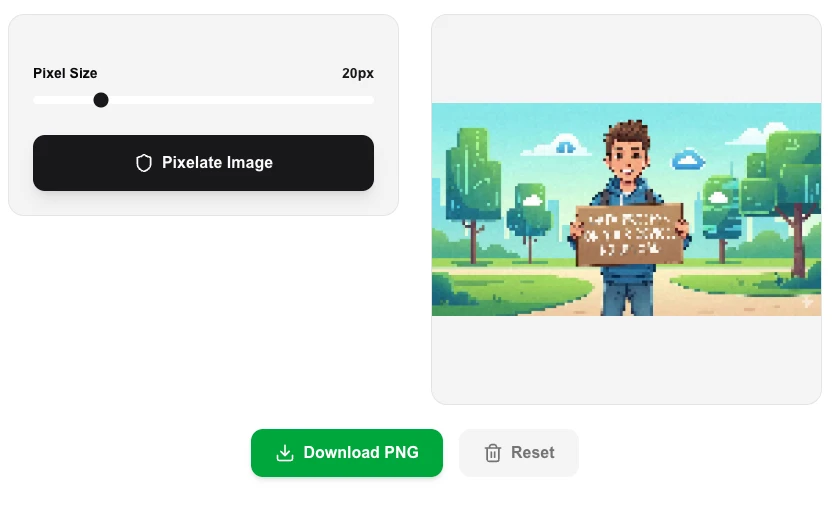
Anonymize sensitive information or create artistic effects with our instant image pixelation tool. Perfect for blurring faces, license plates, or documents directly in your browser without compromising your privacy.
How to Use
- Upload or drag and drop your image into the workspace.
- Adjust the 'Pixel Size' or 'Intensity' sliders to control the level of pixelation.
- The effect is applied in real-time as you move the sliders.
- Download the final pixelated image once you are satisfied with the result.
Common Use Cases
- Protecting identity by pixelating faces in social media photos.
- Censoring sensitive text or numbers in screenshots and documents.
- Adding a retro, 8-bit aesthetic to digital artwork and profile pictures.
Technical Details
Uses high-performance canvas manipulation to group pixels into blocks. The entire process stays within your browser's memory, ensuring total data privacy.
Frequently Asked Questions
- Can pixelation be reversed?
- No, pixelation is a destructive process that discards original data to create the effect. Always keep a backup of your original file.
- Does it work with large images?
- Yes, our tool is optimized for fast processing, though extremely high-resolution images may take a few extra seconds.
- Is the pixelation done in my browser or on a server?
- It's done entirely in your browser using the Canvas API. Your image is never uploaded — all processing happens locally on your device with no data leaving it.
- Can I use this to censor or blur sensitive parts of an image?
- Yes. Pixelation is a common technique for censoring faces, license plates, and personal information in screenshots or photos before sharing them publicly.
- What block size should I use for a subtle vs. heavy pixelation effect?
- Lower block sizes (e.g. 4–8 px) create a subtle retro effect, while larger sizes (20–50 px) produce a heavy mosaic that completely obscures details. Adjust the slider to preview in real time.
- Can I selectively pixelate only part of an image, like a face or license plate?
- Yes. The Pixelate Image tool supports region-selection mode where you can draw a rectangle over a specific area of the image — such as a face, license plate, or sensitive document field — and pixelate only that region. The rest of the image remains unchanged. After applying regional pixelation you can download the result as a PNG or JPEG. This is useful for privacy protection in screenshots, news photography, legal documents, and user-submitted content before publication.
Local processing
Our local file, text and chart tools process content on your device using JavaScript, browser APIs and, where needed, WebAssembly. Our usage events do not include filenames, file contents, input text, chart values, raw errors, emails or license references. Network lookup tools (such as DNS, WHOIS, IP and speed tests) contact external services for their stated purpose. Loading the website, fonts, libraries and models also makes network requests. WebAssembly itself does not prevent network access.